Enable Fast Scanning
Set up Apple's Sensitive Content Analysis for 5x faster photo scanning
Quick Path
Settings → Privacy & Security → Sensitive Content Warning → ON
What is Sensitive Content Analysis?
Apple's Sensitive Content Warning is a built-in iOS feature that uses on-device machine learning to detect nudity in photos and videos. SkinVault uses this as a fast pre-filter to dramatically speed up scanning.
100% On-Device: Like SkinVault, Apple's SCA runs entirely on your iPhone using the Neural Engine. No photos are ever sent to Apple or anyone else.
Why Enable It?
- 5x Faster Scanning: SCA analyzes photos in ~20ms vs ~150ms for full AI
- Skip Safe Photos: Quickly identifies obviously safe photos to skip
- Better Battery Life: Less processing = less battery drain during scans
- Same Privacy: Everything stays on your device
Step-by-Step Setup
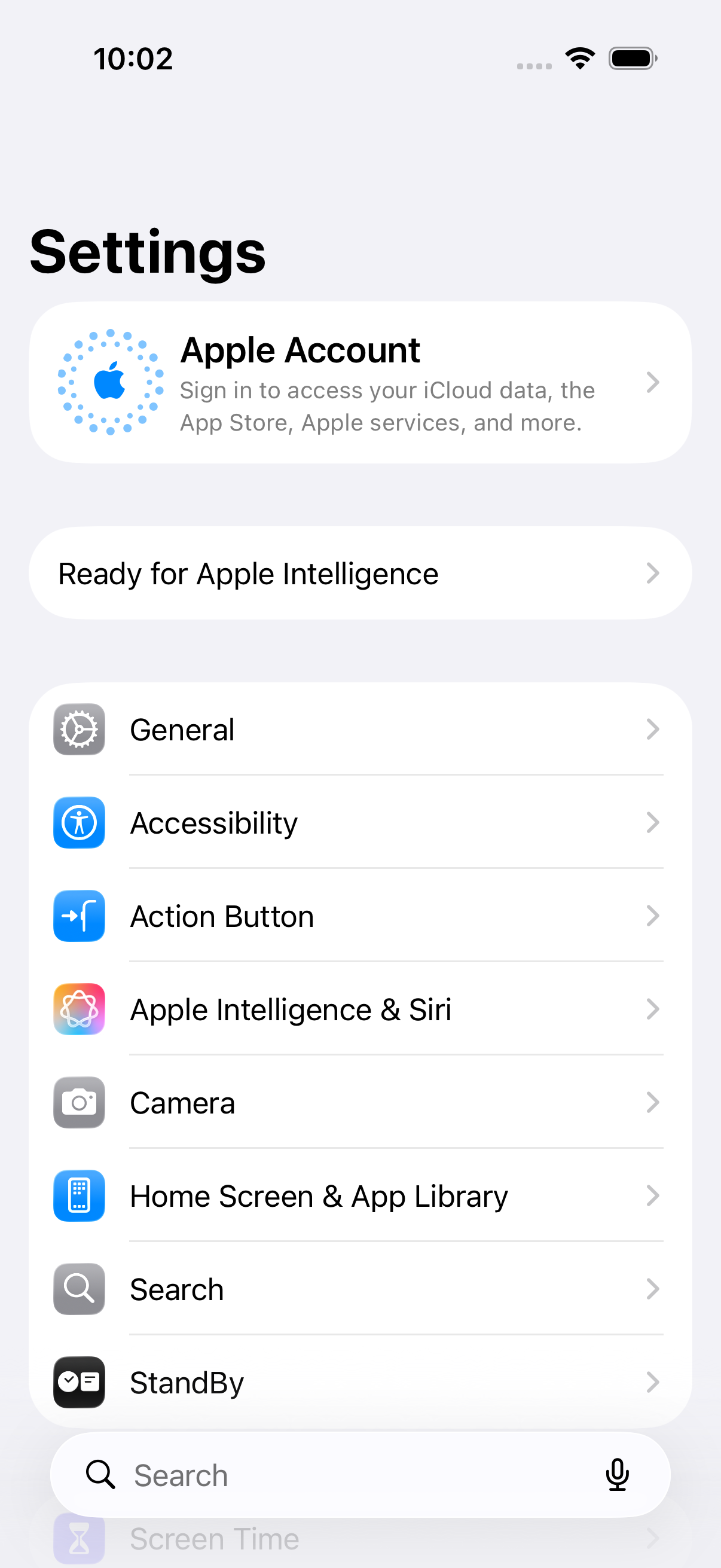
Open Settings
Open the Settings app on your iPhone. Look for the gear icon on your home screen.
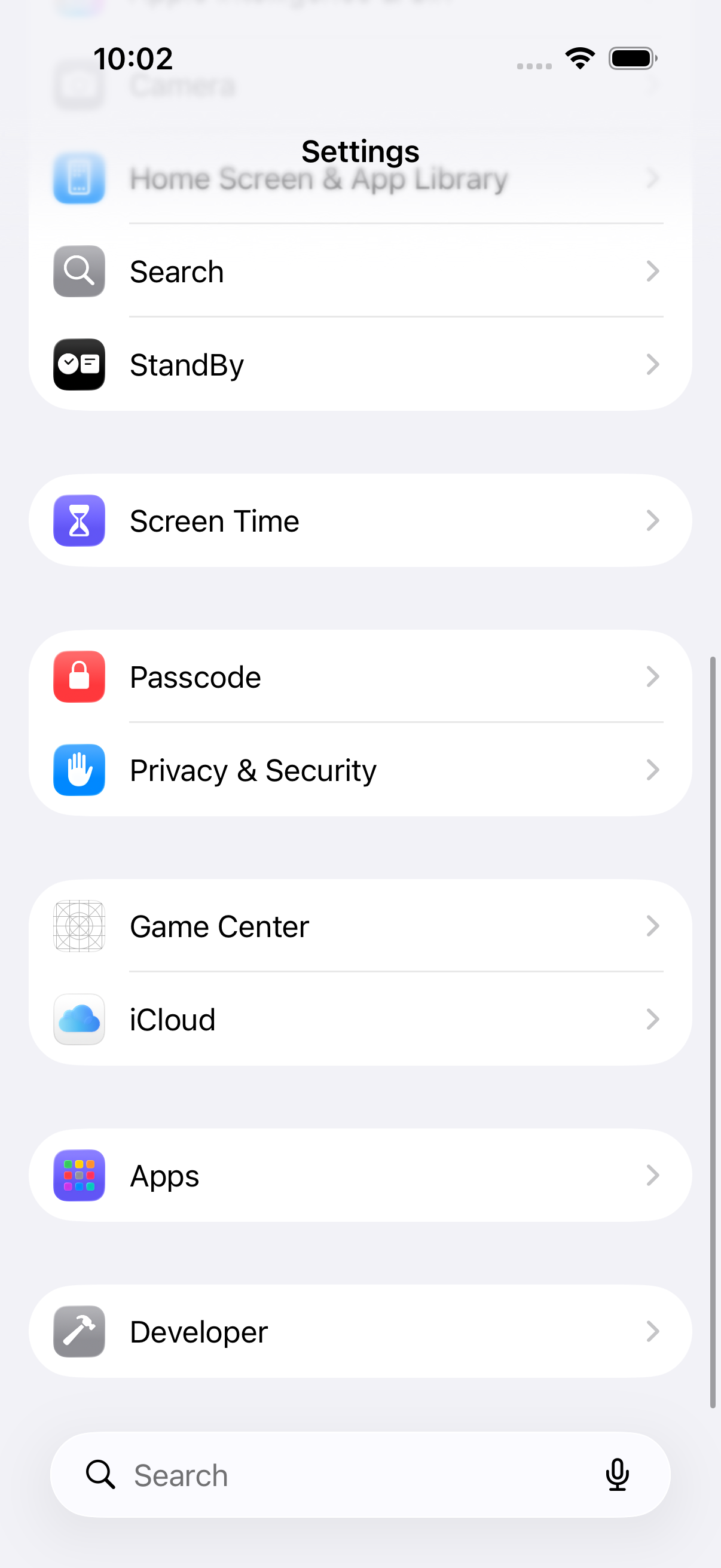
Find Privacy & Security
Scroll down and tap Privacy & Security. It has a blue hand icon.
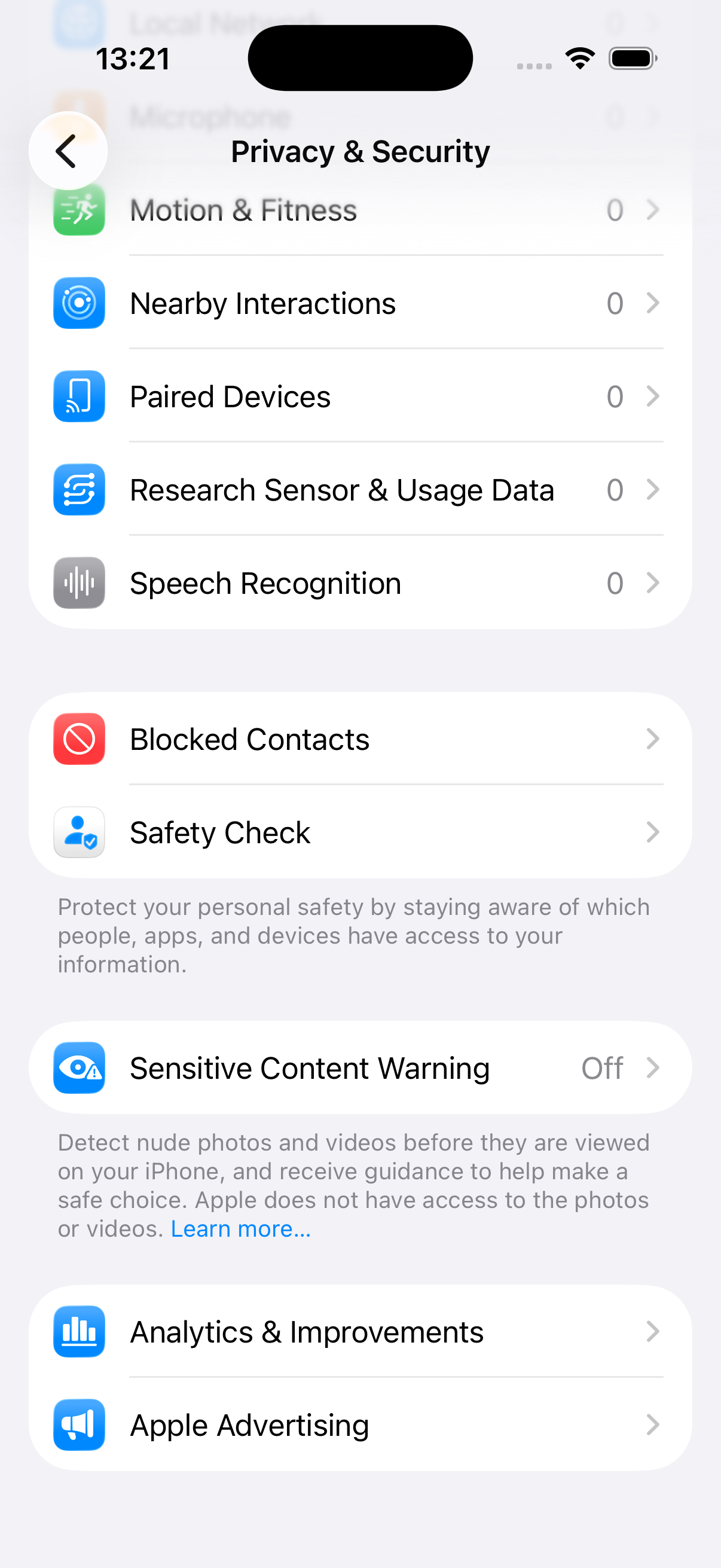
Find Sensitive Content Warning
Scroll to the bottom of Privacy & Security and tap Sensitive Content Warning.
It should show "Off" if you haven't enabled it before.
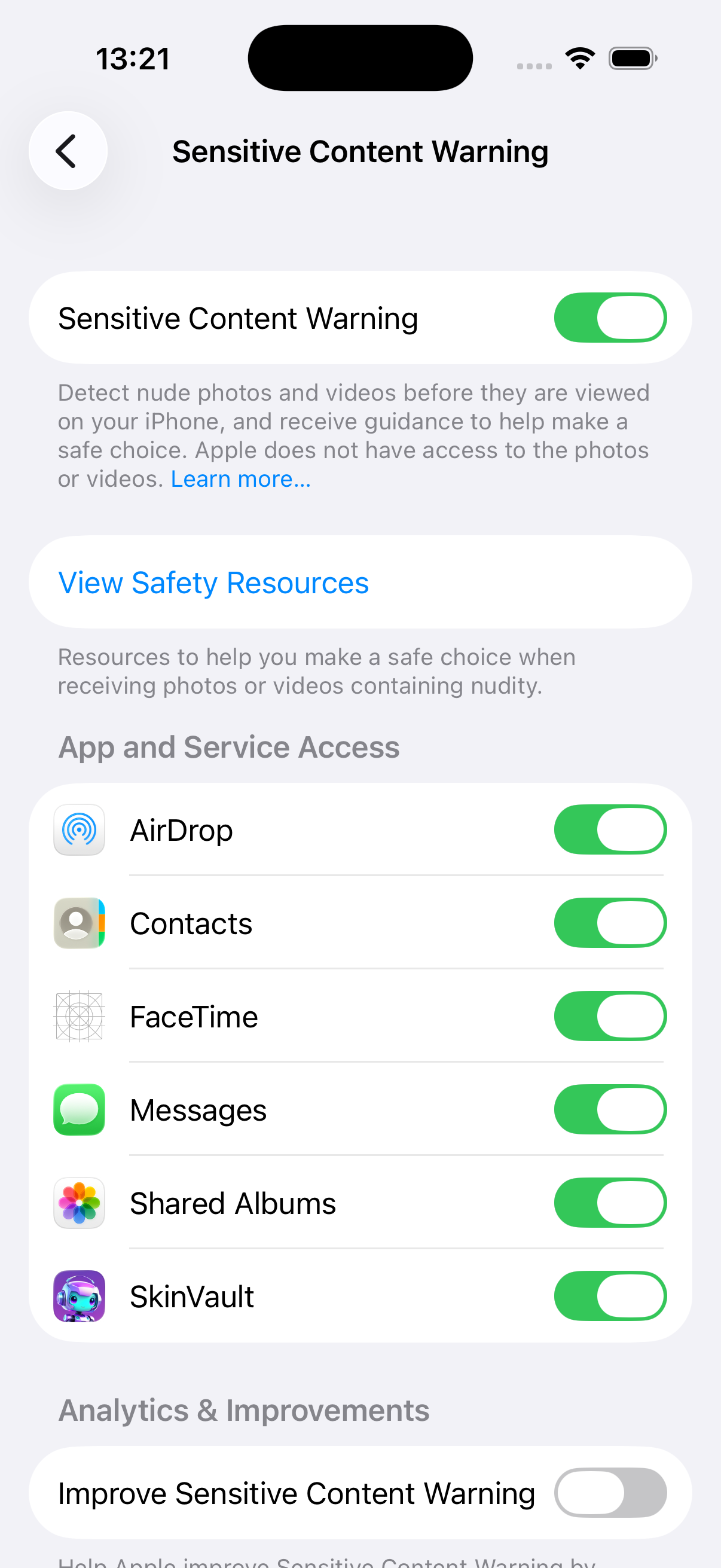
Enable the Main Toggle
Turn ON the Sensitive Content Warning switch at the top. This is the only required setting.
When enabled, you'll see a list of apps that can use this feature, including SkinVault.
Configure App Toggles (Optional)
The app toggles control which apps show blur warnings on sensitive images. These don't affect SkinVault's scanning ability.
We recommend keeping SkinVault enabled and turning off the others if you don't want blur warnings in Messages, AirDrop, etc.
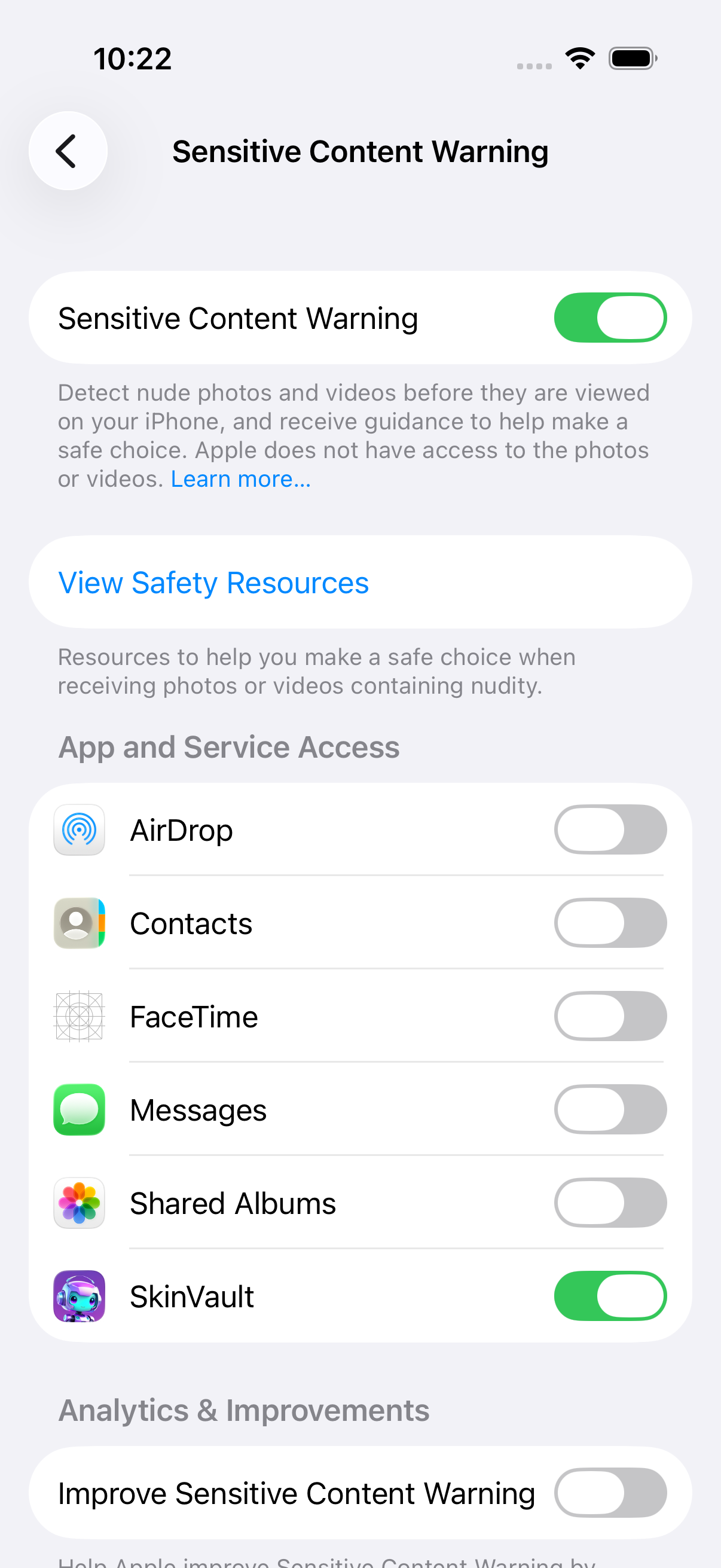
Understanding the App Toggles
When you enable Sensitive Content Warning, iOS shows toggles for various apps. Here's what each one does:
| Toggle | What It Does | Recommendation |
|---|---|---|
| Sensitive Content Warning | Master toggle - enables the feature system-wide | Required ON |
| SkinVault | Allows SkinVault to use fast pre-filtering | Keep ON |
| AirDrop | Blurs sensitive content received via AirDrop | Your choice |
| Contacts | Blurs sensitive contact photos | Usually OFF |
| FaceTime | Detects sensitive content during video calls | Your choice |
| Messages | Blurs sensitive images in iMessage | Your choice |
| Shared Albums | Blurs sensitive photos in shared albums | Usually OFF |
| Improve Sensitive Content Warning | Sends anonymous feedback to Apple | OFF (privacy) |
Important
The app toggles only control blur warnings - whether iOS blurs sensitive content in that app until you choose to view it. They do NOT affect SkinVault's ability to scan your photos. As long as the main toggle and SkinVault are ON, fast scanning will work.
Frequently Asked Questions
Do I need to enable all the app toggles?
No. You only need the main Sensitive Content Warning toggle and SkinVault enabled. The other toggles are for blur warnings in those apps - turn them on or off based on your preference.
What if I don't enable this?
SkinVault will still work, but scanning will be slower. Without SCA, every photo goes through our full AI model (~150ms each). With SCA enabled, obviously safe photos are skipped in ~20ms, making large library scans much faster.
Does this send my photos to Apple?
No. Apple's Sensitive Content Analysis runs 100% on-device using the Neural Engine in your iPhone. No photos are uploaded anywhere. This is the same privacy model SkinVault uses.
What does "Improve Sensitive Content Warning" do?
This optional toggle sends anonymous, aggregated feedback to Apple to improve their detection. It does NOT send your photos. We recommend leaving it OFF for maximum privacy, but it's your choice.
I enabled it but SkinVault still says it's not available
Try these steps:
- Make sure both the main toggle AND the SkinVault toggle are ON
- Close and reopen SkinVault
- Restart your iPhone if the issue persists
Can I disable this later?
Yes, you can turn off Sensitive Content Warning anytime in Settings. SkinVault will automatically fall back to full AI scanning (slower but still works).
Privacy Commitment
Both Apple's SCA and SkinVault share the same privacy-first approach:
- 100% On-Device: All processing happens on your iPhone
- Zero Uploads: Your photos never leave your device
- No Cloud Processing: Works completely offline
- Apple Neural Engine: Hardware-accelerated, efficient scanning
Read our full Privacy Policy for complete details.
Need More Help?
If you're still having trouble:
Email: support@linked.skin
Response Time: Usually within 24 hours